Adding Personnel
Load all your personnel on the system to begin clocking in/out and tracking time & attendance according to your financial month.
View GuideAdding profile photos to your personnel profiles can be done directly from the Desktop app (upload a photo or use a webcam), or more conveniently from the mobile app.
Step 1: Navigate
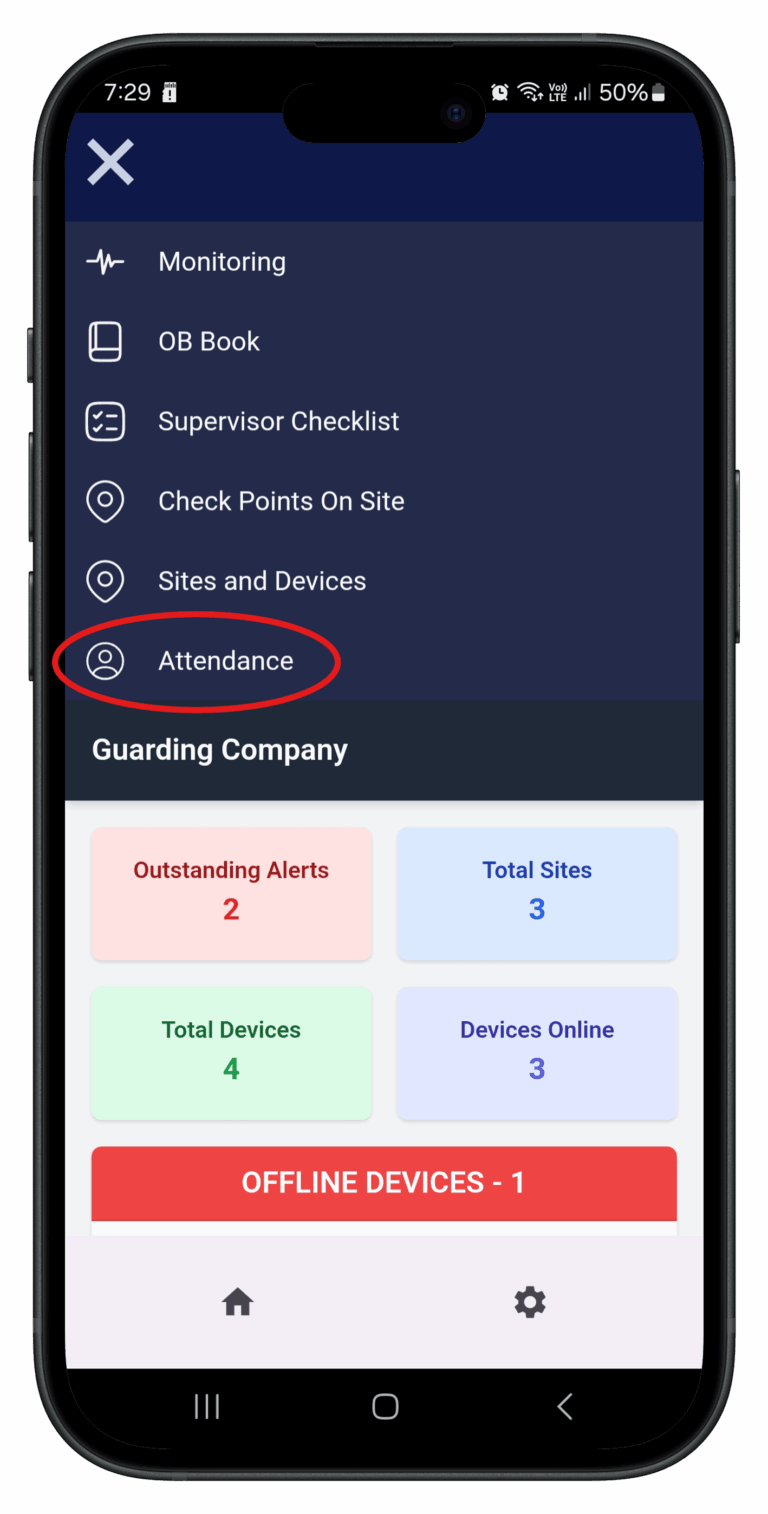
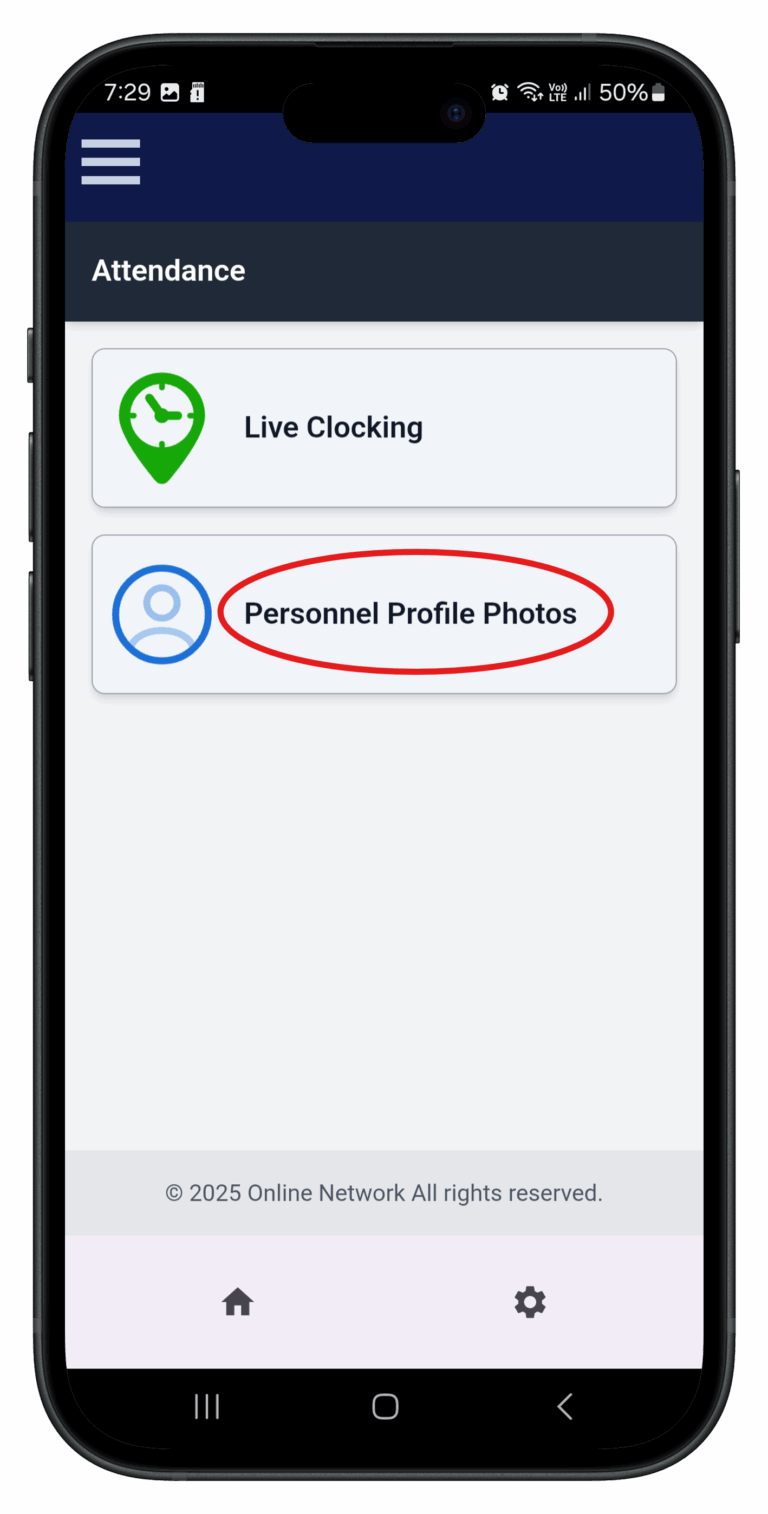
Open the Onguard Manager app and open the menu. Click "Attendance" and go to "Personnel Profile Photos".
Step 2: Search
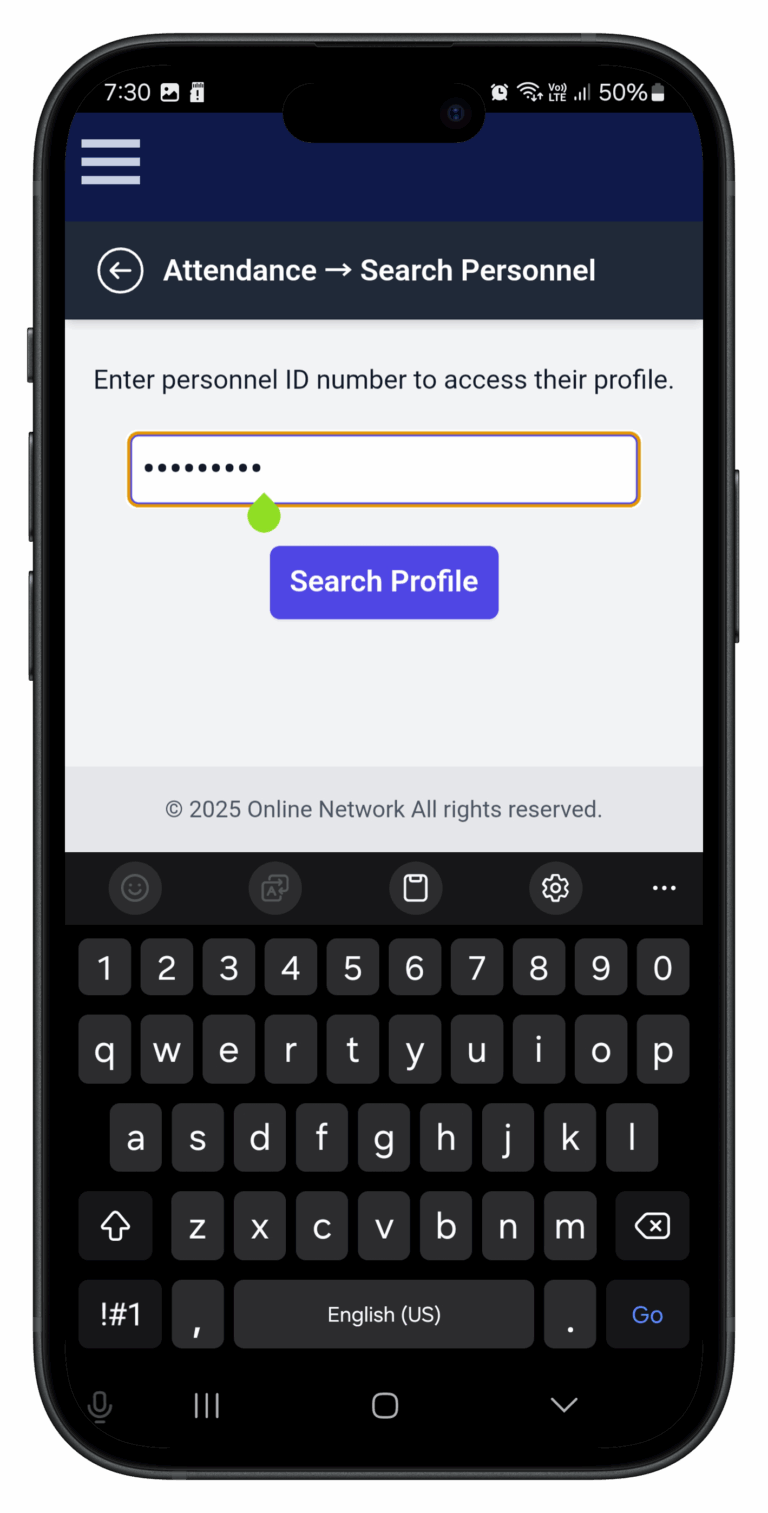
Enter the employee's ID number to locate their profile.
Step 3: Take Photo
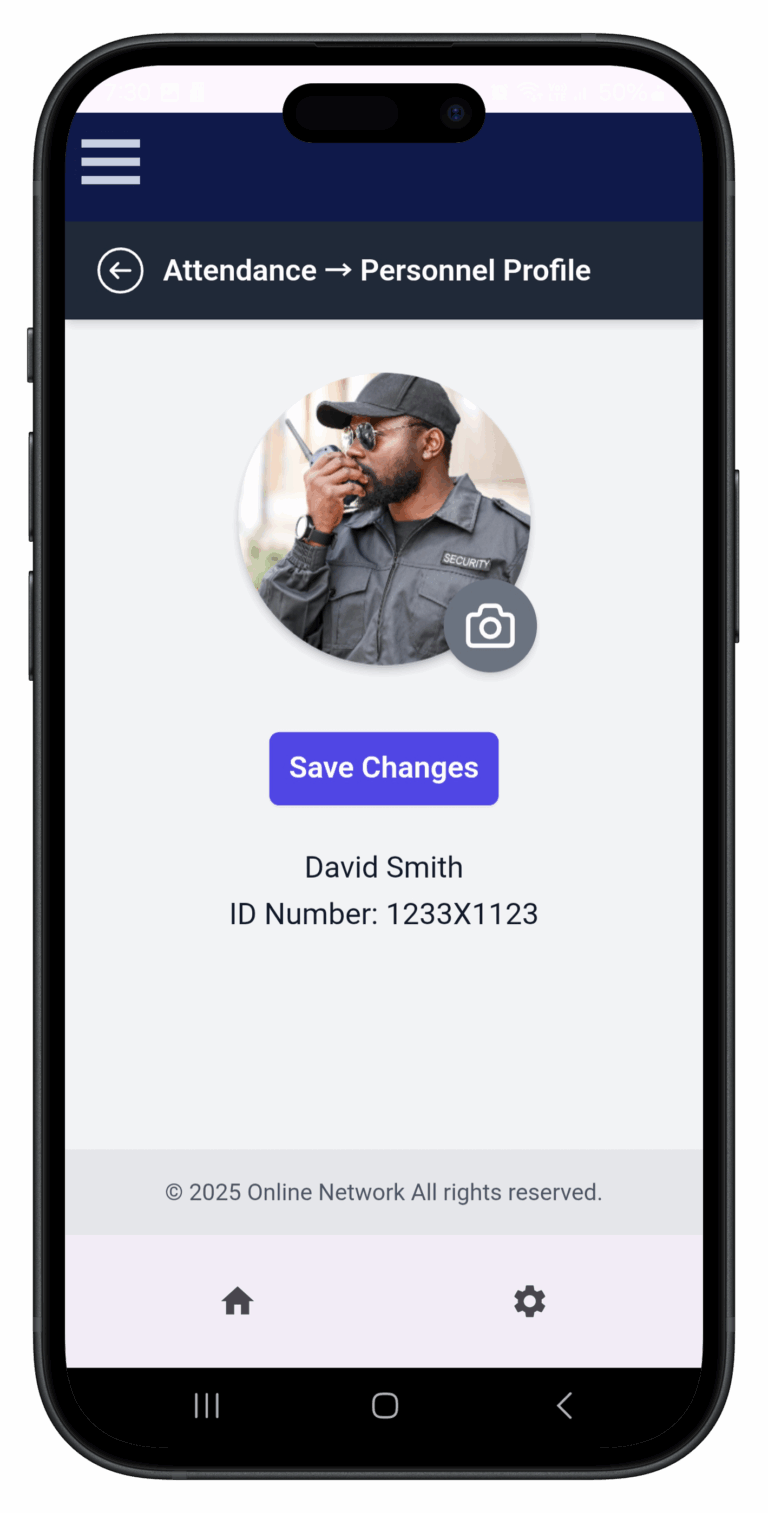
Take a photo. An editor will open allowing you to crop and zoom. Click "Save" to finish.
Their profile photo will now appear on the live attendance page whenever they are clocked in.
Keep learning
Continue exploring tutorials in this section.
Load all your personnel on the system to begin clocking in/out and tracking time & attendance according to your financial month.
View GuideClock in and out using your standard-issue NFC attendance tag. Any of your OG-66 devices can be used as a clock-in point.
View GuideThe Onguard app lets managers clock personnel in and out manually if required. It also gives a live overview of staff on site.
View Guide