Profile Pictures
Use the mobile app to snap photos and upload to Onguard. Profile pictures of personnel appear on the live attendance page and are used on ID cards.
View GuideSo, you've purchased the Attendance package ("T&A" for short) and want to start loading all your personnel onto the system. This is the correct place to start!
Step 1: Navigate
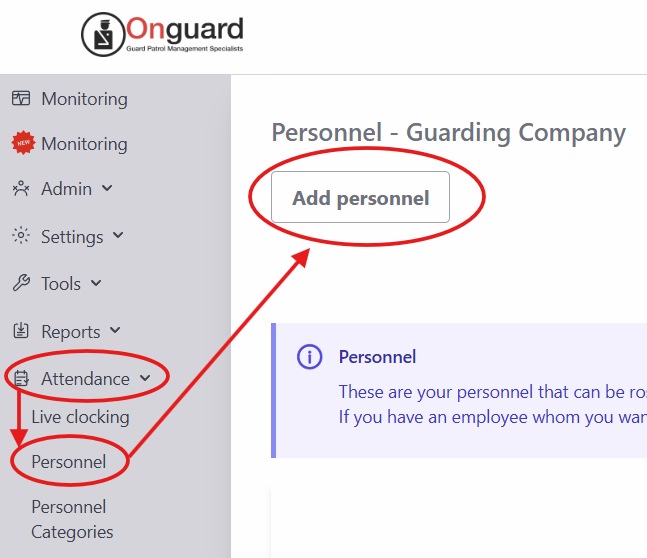
Navigate to the page for adding personnel to your company.
Open the "Attendance" menu and click "Personnel". This is where you can see all your staff and their details.
Click the "Add personnel" button and start filling in their details.
Step 2: Enter Details
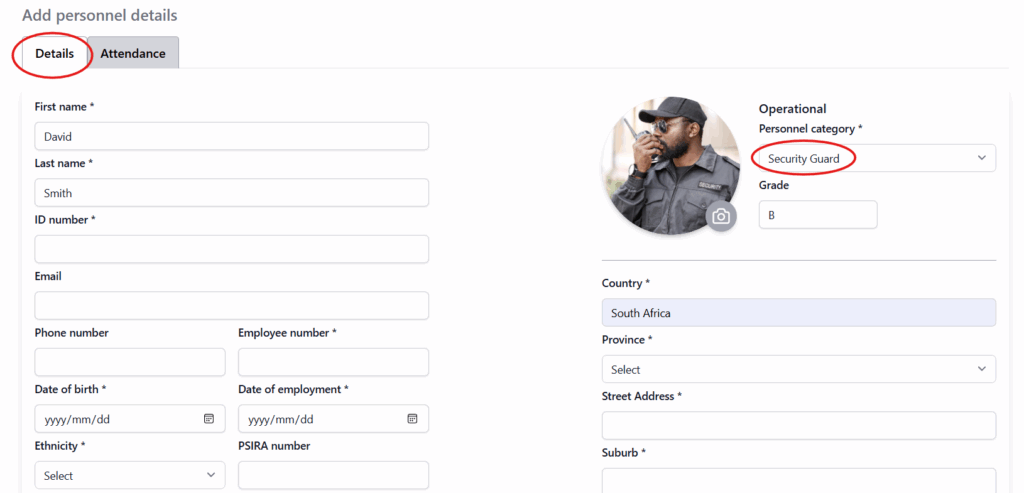
Complete the employee's details, including ID number, PSIRA number (if applicable), and their role (e.g. Security Guard). The personnel category is important for calculating overtime hours. For example, a Security Guard typically works a 12 hour shift, while an Administrator works 8 hours. Yes, you can change these hours to suit your business. We'll show you how in another tutorial!
Step 3: Tags
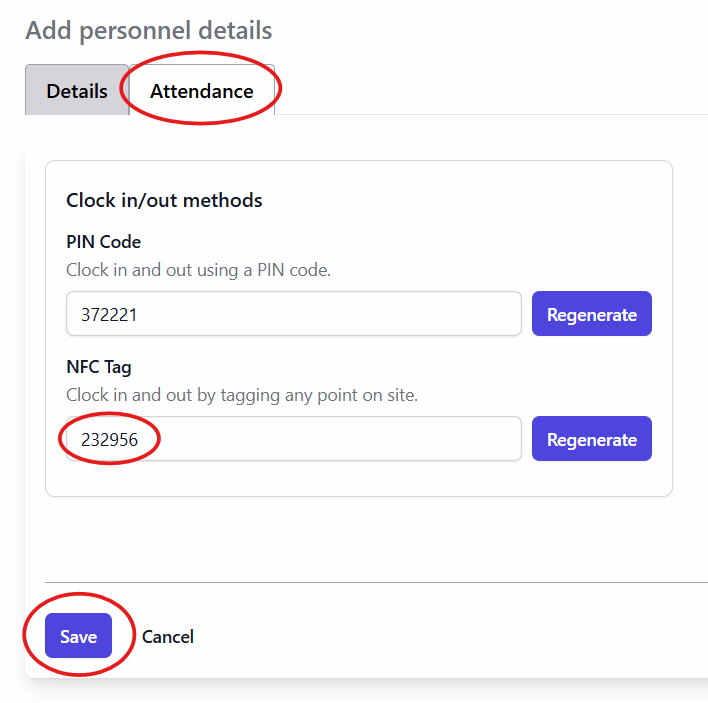
In the "Attendance" tab you will see an NFC Tag code.
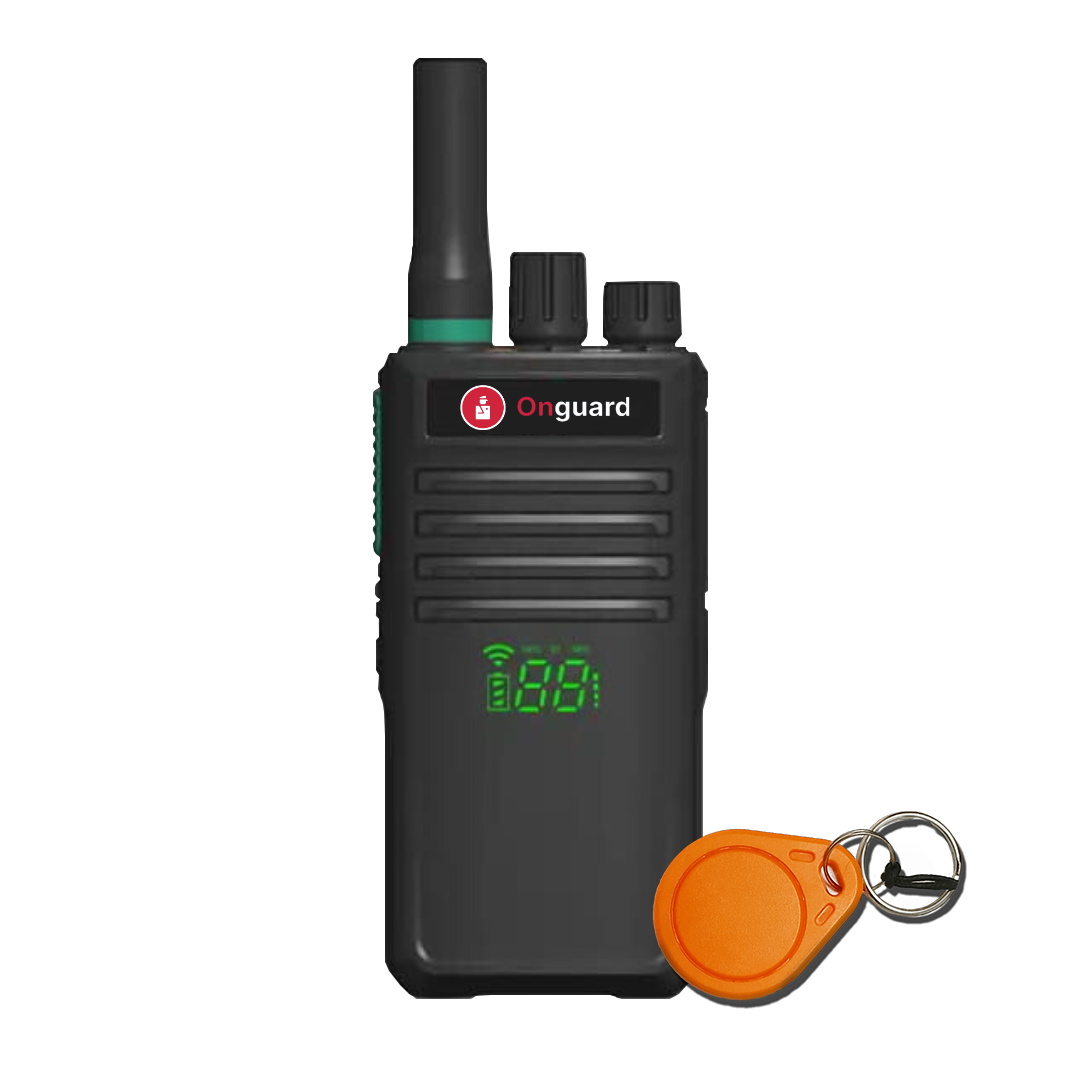
The employee's attendance tag will be coded with this value. To clock in and out, an employee will tap their tag against an OG-66 device.
Click "Save" to finish.
Step 4: Order Tags
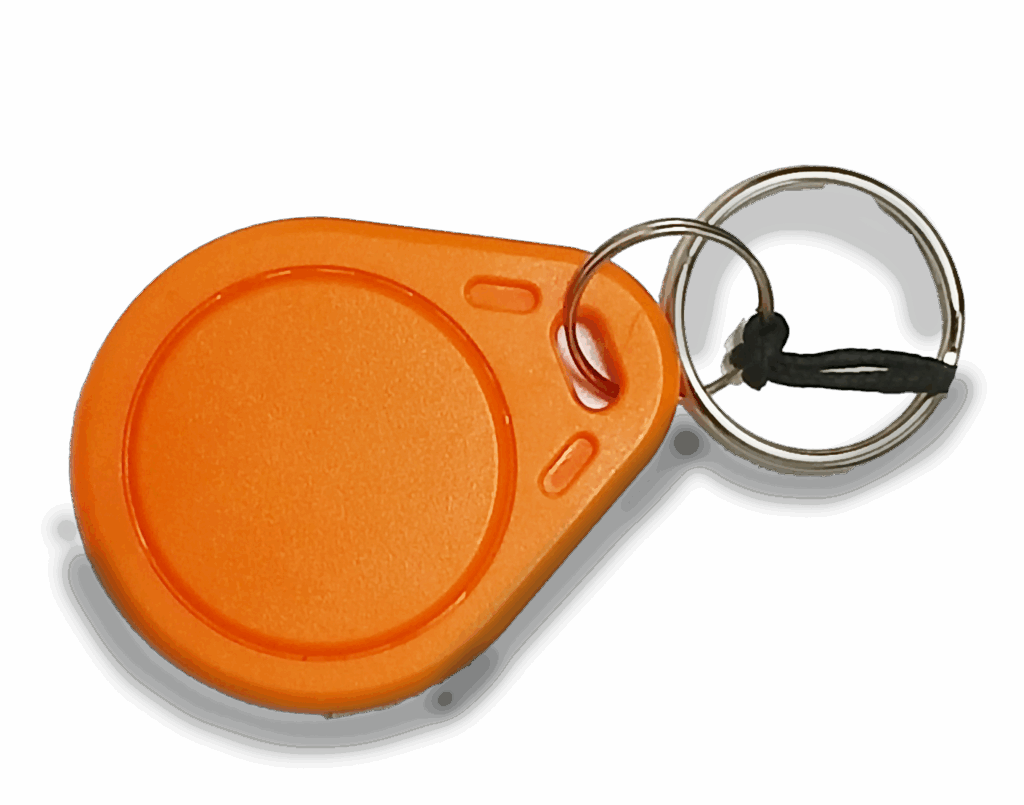
Once you have finished loading all your personnel, contact us to place an order for your attendance tags. Each tag will be coded to an employee.
Step 5: Test
To test, simply take a tag and tap it against one of your OG-66 devices. The device will read aloud the employee's name and confirm whether they are clocked in or out.
That's it, you're all set!
Keep learning
Continue exploring tutorials in this section.
Use the mobile app to snap photos and upload to Onguard. Profile pictures of personnel appear on the live attendance page and are used on ID cards.
View GuideClock in and out using your standard-issue NFC attendance tag. Any of your OG-66 devices can be used as a clock-in point.
View GuideThe Onguard app lets managers clock personnel in and out manually if required. It also gives a live overview of staff on site.
View Guide