Adding Personnel
Load all your personnel on the system to begin clocking in/out and tracking time & attendance according to your financial month.
View GuideManagers can use the Onguard app to clock themselves and their staff in and out if required. This feature is only available for managers, and gives an overview of all personnel who are currently clocked in. This should not be used as the primary method of clocking, but as an alternative means if required (e.g. if the employee lost their tag on the way to work).
And yes, everything is audited, which means you will be able to see that the app was used to clock an employee in/out and the reason given.
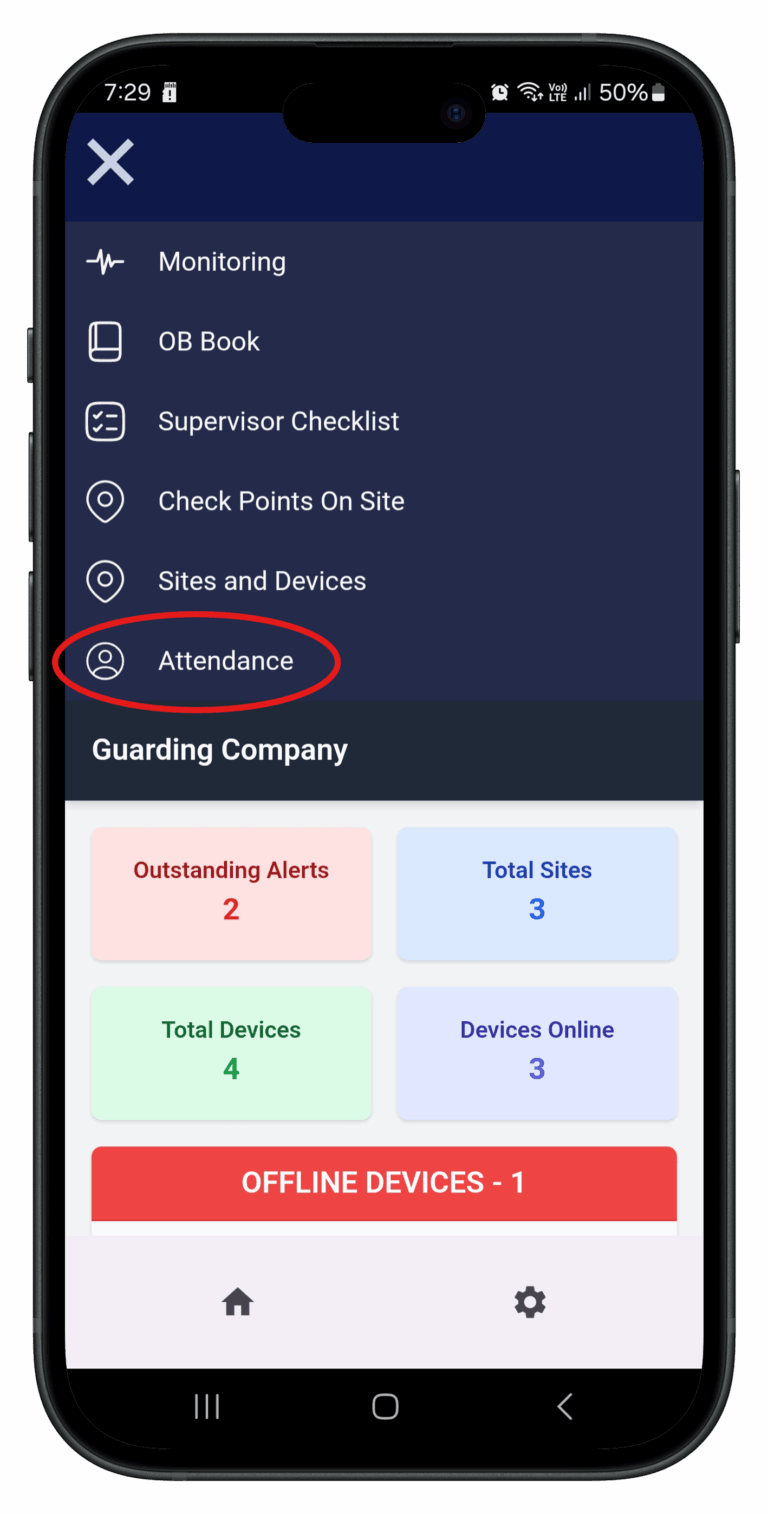
Step 1: Open Attendance
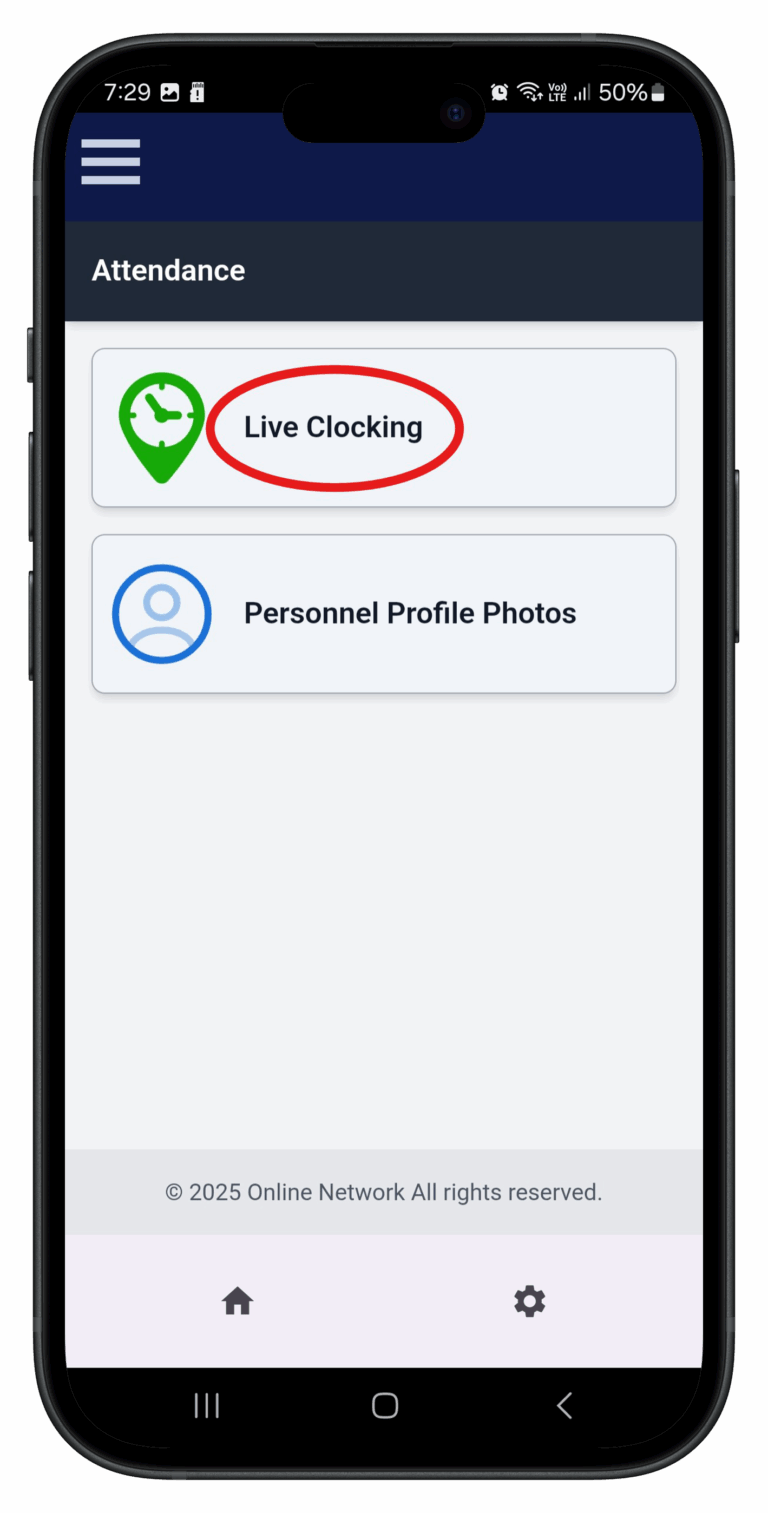
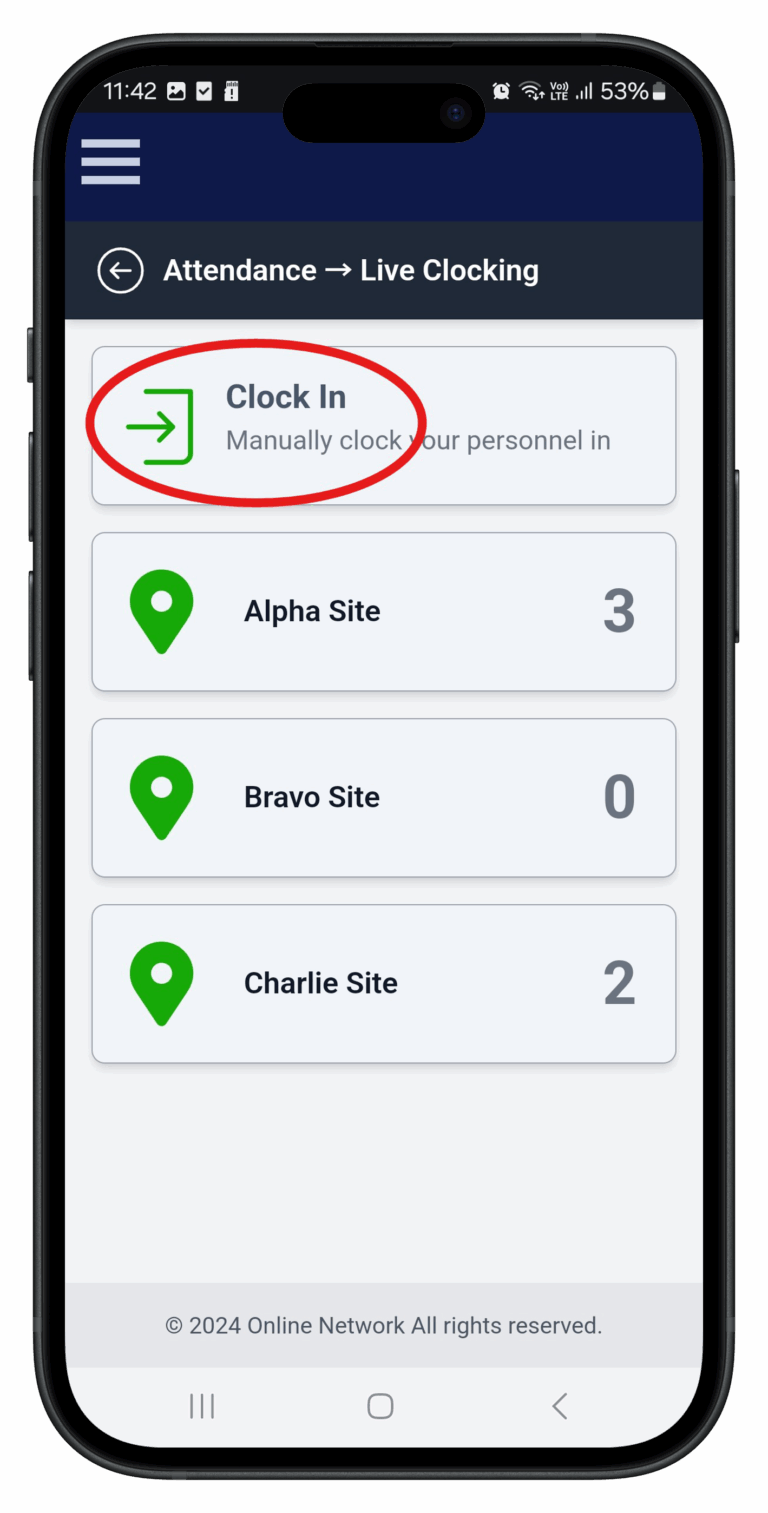
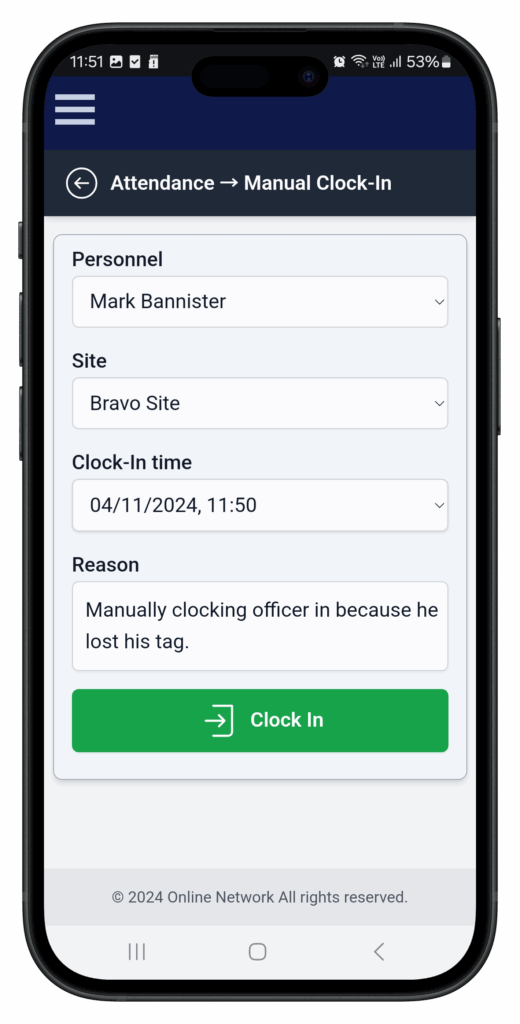
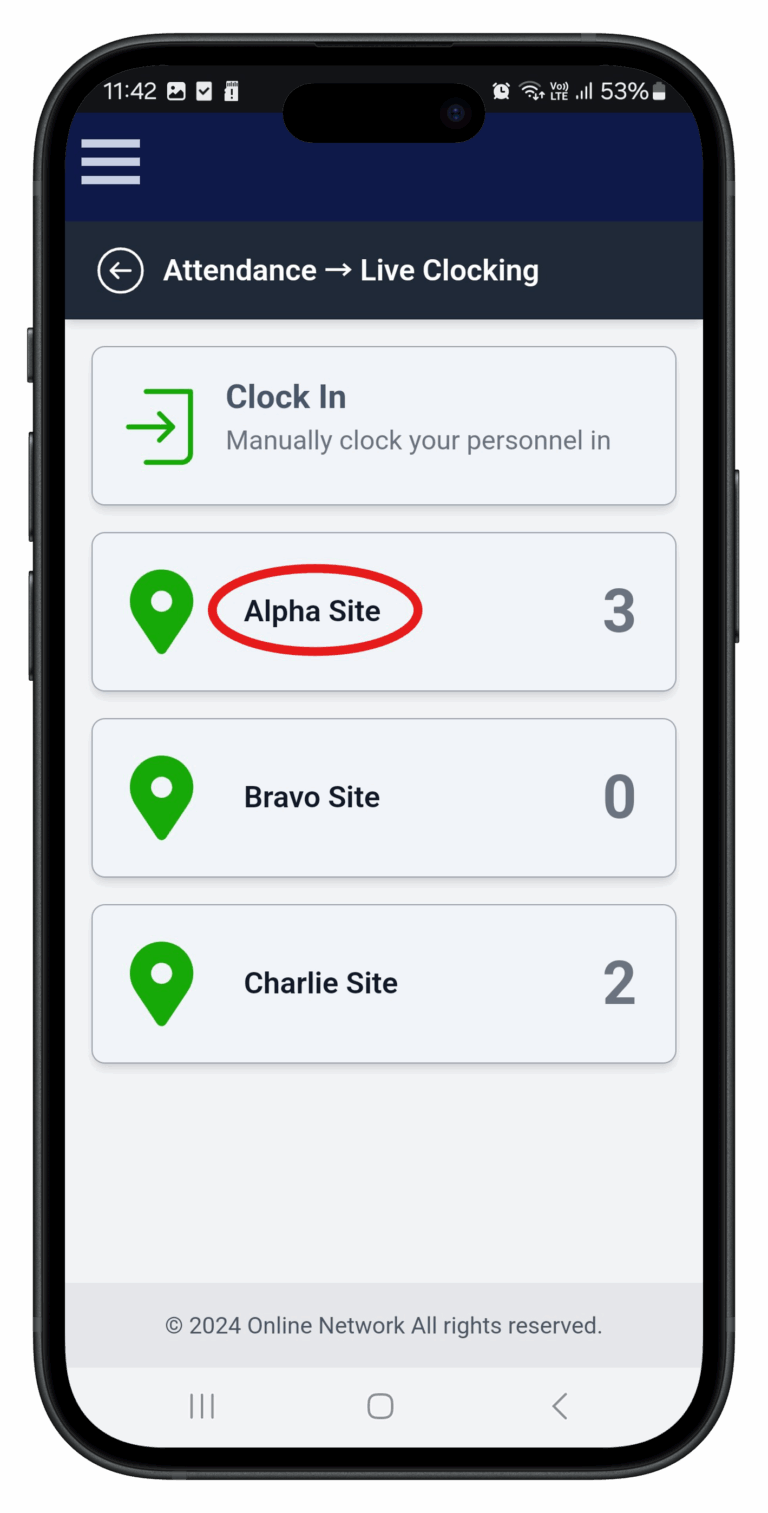
Open the Onguard app and navigate to "Attendance" and open "Live Clocking". This shows you your sites and how many personnel are clocked in at each. To manually clock yourself or your staff in, click "Clock In". Choose a personnel member, the site, and a clock-in time. Give a reason for the manual entry (this will appear as a note in the attendance records). Hit the big green "Clock In" button!
Step 2: Open Live Clocking
Open "Live Clocking " to see your sites and how many personnel are currently clocked in at each.
Step 3: Start a Manual Clock-In
Click "Clock In " to manually clock yourself or a member of staff in.
Step 4: Enter the Clock-In Details
Choose a personnel member, site, and clock-in time. Give a reason for the manual entry, then tap the green "Clock In " button.
Step 5: Select a Site
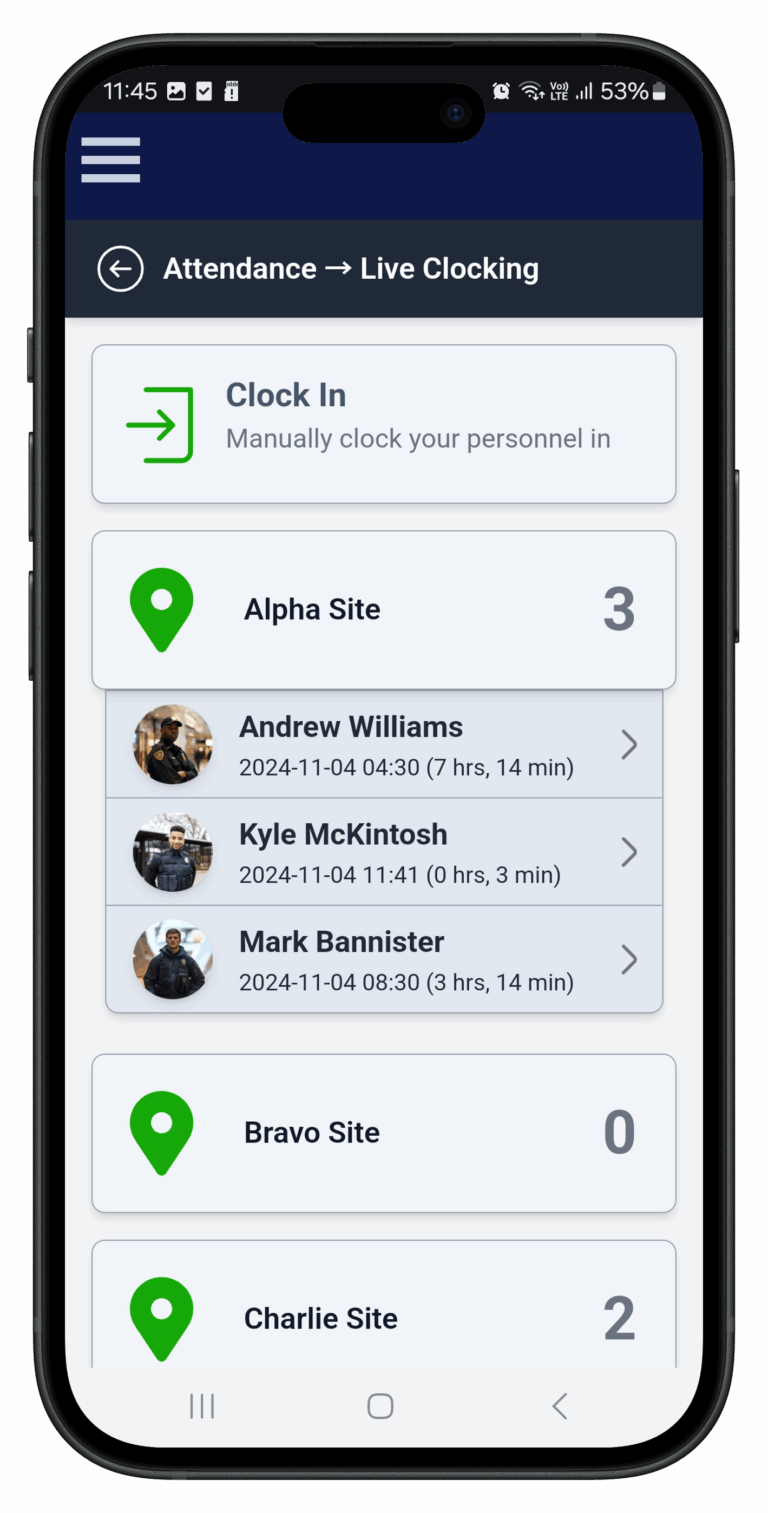
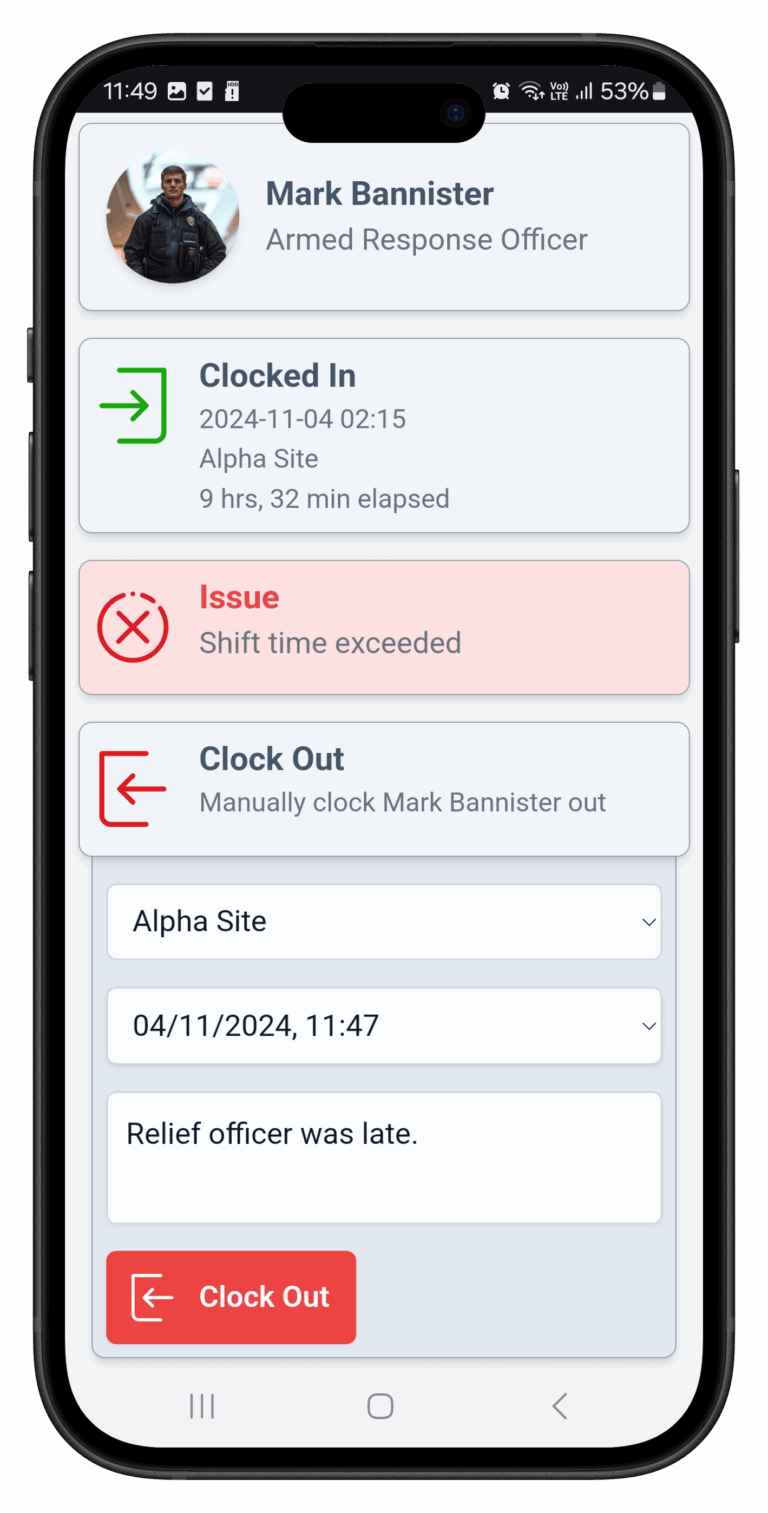
The live clocking page shows you how many personnel are clocked in at each of your sites. Click on a site to view all the personnel currently clocked in there, as well as their current shift time. Click on the person you want to clock out. You will see all the details of their current shift such as clock-in time, how long they've been on shift, and more. In the example below, the officer has exceeded their shift time (indicated in red).
Choose a site, select a clock-out time, and give a reason for the manual entry. Hit the big red "Clock Out" button!
Step 6: Select the Personnel Member
Choose the person you want to clock out. Their current shift details and elapsed time are displayed; exceeded shift time is indicated in red.
Step 7: Enter the Clock-Out Details
Choose a site and clock-out time, give a reason for the manual entry, and tap the red "Clock Out " button.
Keep learning
Continue exploring tutorials in this section.
Load all your personnel on the system to begin clocking in/out and tracking time & attendance according to your financial month.
View GuideUse the mobile app to snap photos and upload to Onguard. Profile pictures of personnel appear on the live attendance page and are used on ID cards.
View GuideClock in and out using your standard-issue NFC attendance tag. Any of your OG-66 devices can be used as a clock-in point.
View Guide