Adding Personnel
Load all your personnel on the system to begin clocking in/out and tracking time & attendance according to your financial month.
View GuidePersonnel use their NFC attendance tag to clock themselves in and out. While there are ways of manually clocking someone in, this should only be done in exceptional circumstances.
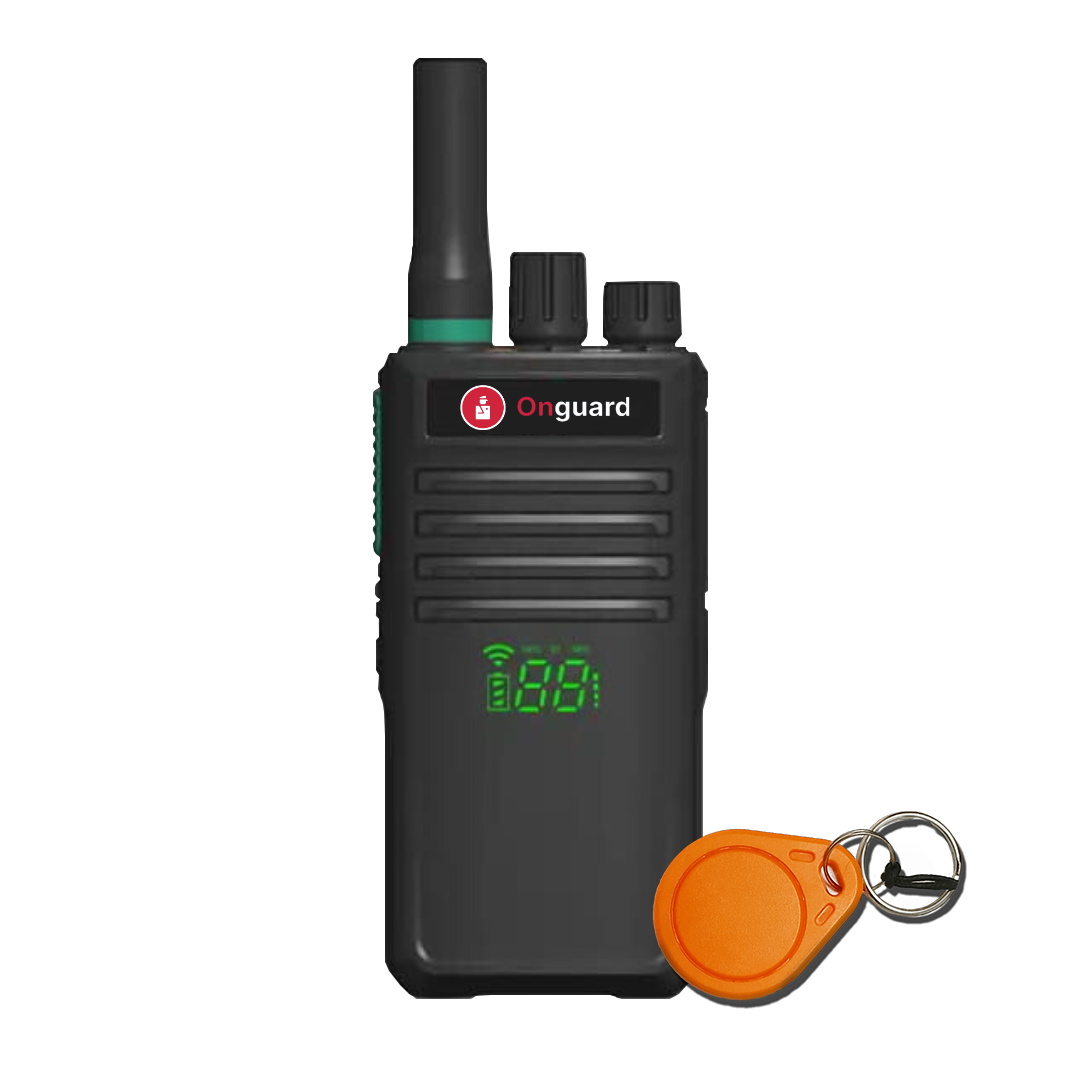
See the OG-66 Patrol Radio for an overview of its patrol, communication and attendance functions.
Step 1: Clock In
Tap your attendance tag against any of your OG-66 devices. The device will announce your name and that you are being clocked IN.It will also announce the Site you are clocked in to.
Step 2: Monitor Attendance
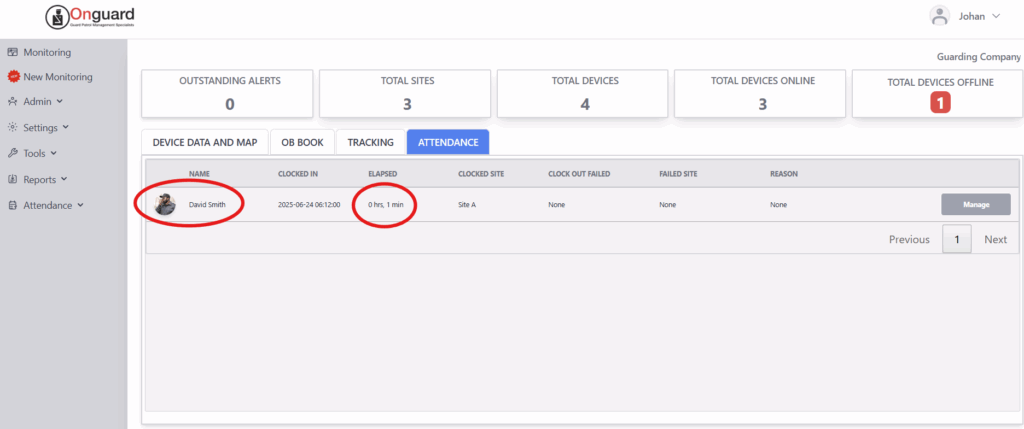
Controllers can see that you have clocked in, as well as which site you are registered on. Your elapsed time is also visible, as well as whether you have exceeded your shift time (e.g. 8 hours, etc.).
Step 3: Clock Out
Tap your attendance tag against any OG-66 device on the same Site that you clocked in on.The device will announce your name and confirm that you have been clocked OUT. Remember, you must clock OUT on the same Site that you clocked IN on.
Keep learning
Continue exploring tutorials in this section.
Load all your personnel on the system to begin clocking in/out and tracking time & attendance according to your financial month.
View GuideUse the mobile app to snap photos and upload to Onguard. Profile pictures of personnel appear on the live attendance page and are used on ID cards.
View GuideThe Onguard app lets managers clock personnel in and out manually if required. It also gives a live overview of staff on site.
View Guide