Adding Personnel
Load all your personnel on the system to begin clocking in/out and tracking time & attendance according to your financial month.
View GuideAll personnel have a category, such as Security Officer, Manager, Administrator, etc. When an employee remains clocked in for longer than their category's normal shift time a warning is displayed on the controller's monitoring stack to alert them that the employee is working overtime.
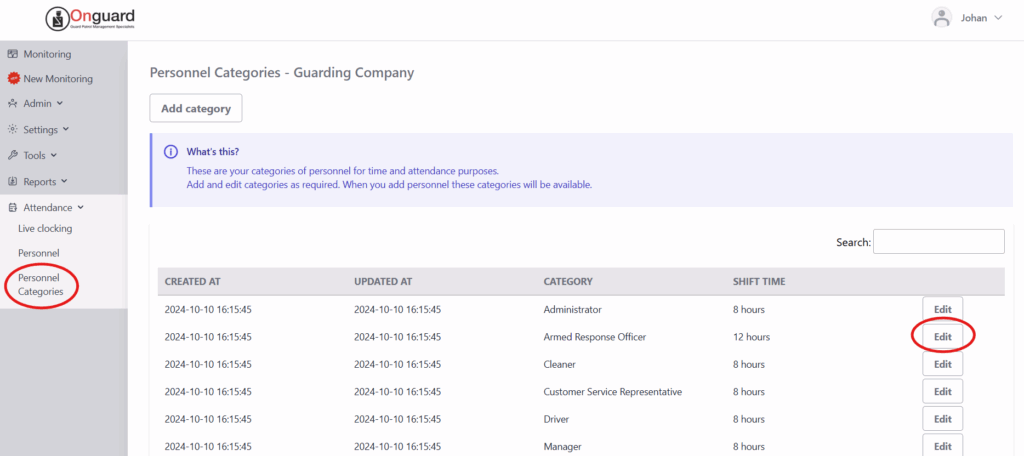
Step 1: Open a Personnel Category
In the main menu on the left, navigate to the "Attendance" tab and click "Personnel Categories". This will open the view of all personnel categories listed under your company.
Locate the category you wish to edit and click "Edit".
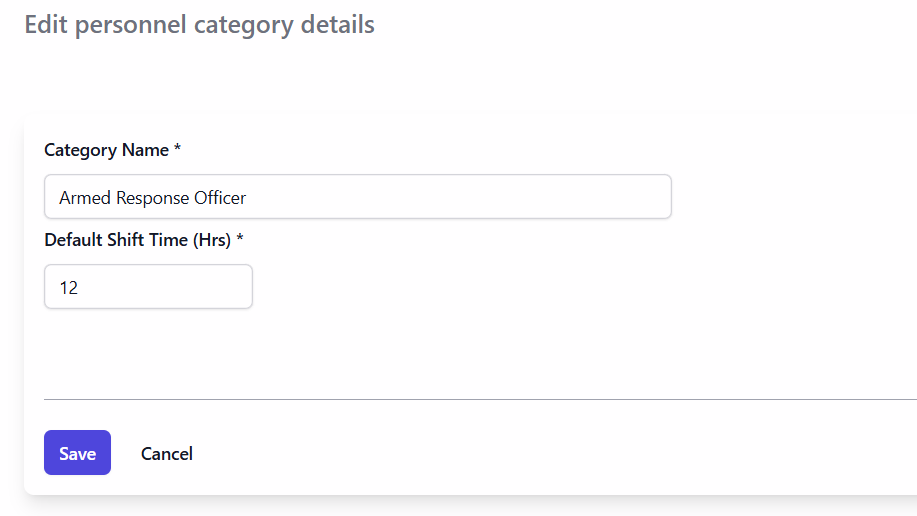
Step 2: Edit the Category Details
From here you can change the name and shift time of the personnel category. For example, office staff may work 8 hours, while armed response officers work 12 hour shifts.
Click "Save" when finished.
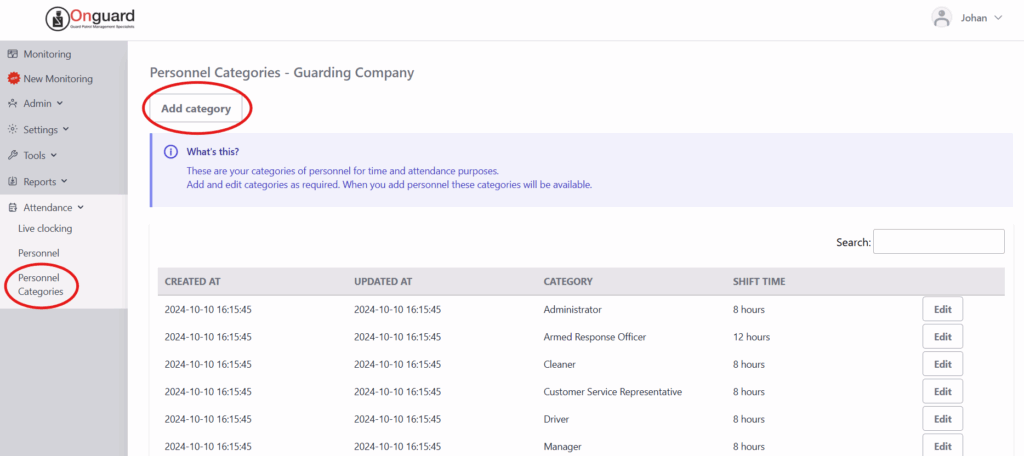
Step 3: Add a Personnel Category
Your Attendance package already comes with a set of default categories. If none of these quite match your requirements you are free to create your own.
In the main menu on the left, navigate to the "Attendance" tab and click "Personnel Categories". Select "Add category".
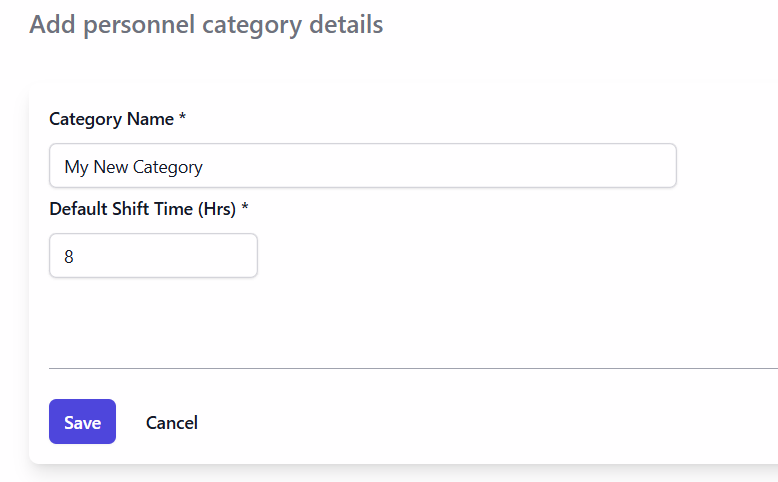
Step 4: Enter the Category Details
Enter a name for your category, as well as a shift time. Click "Save" when you are finished.
Step 5: Assign Personnel to a Category
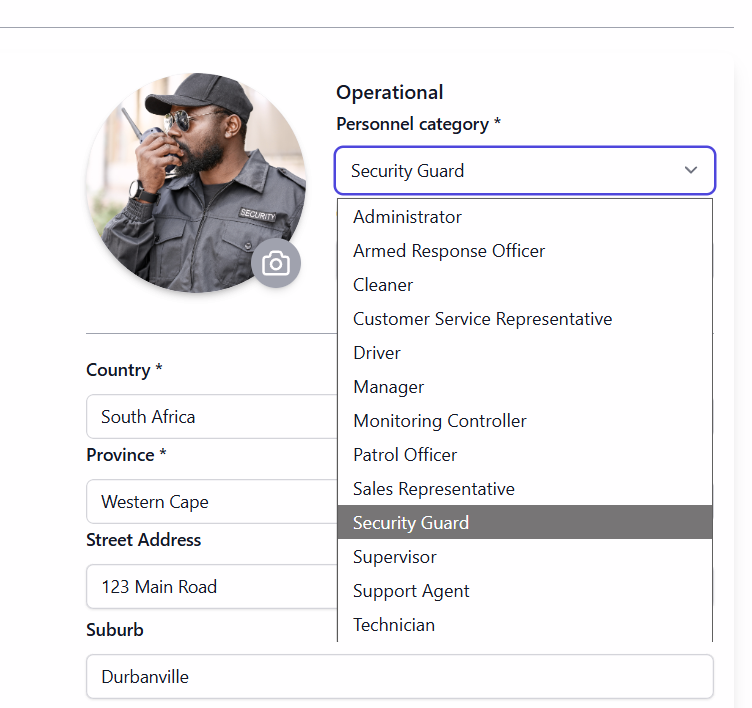
When you create a new personnel member or edit an existing one, you can select their category. Remember, overtime warnings will be generated when they exceed their category's shift time on any given shift.
Keep learning
Continue exploring tutorials in this section.
Load all your personnel on the system to begin clocking in/out and tracking time & attendance according to your financial month.
View GuideUse the mobile app to snap photos and upload to Onguard. Profile pictures of personnel appear on the live attendance page and are used on ID cards.
View GuideClock in and out using your standard-issue NFC attendance tag. Any of your OG-66 devices can be used as a clock-in point.
View Guide