Adding Personnel
Load all your personnel on the system to begin clocking in/out and tracking time & attendance according to your financial month.
View GuideControllers see a live view of all personnel who are currently clocked in on any site that the controller can monitor. Controllers have limited permissions in what they can do, for example, they cannot clock personnel IN (due to potential for fraud). The can however clock personnel OUT if required. For example, a staff member may have lost their tag at a site and cannot clock out.
Step 1: Monitor Live Attendance
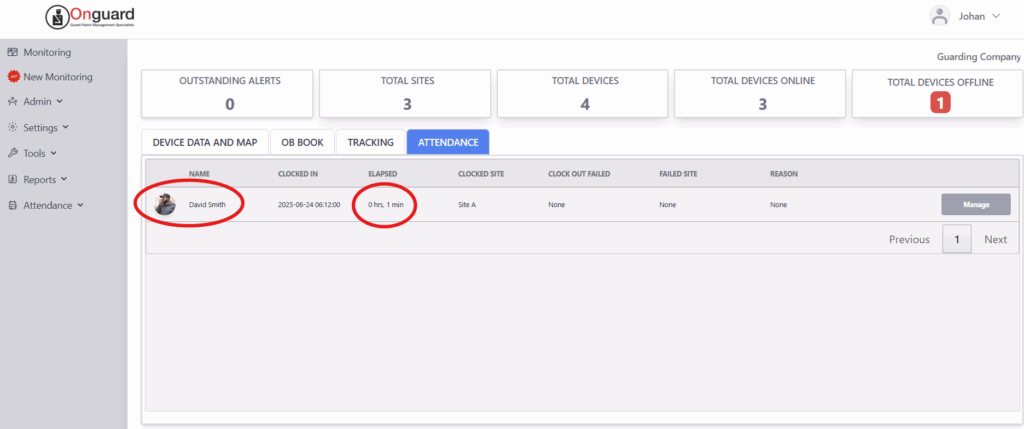
Navigate to the "Attendance" tab (indicated in blue) to view live attendance. The clock-in times are displayed, site name, as well as how long they have been on shift.
If a clock-out failed, this is also displayed along with the reason. For example, the employee may have attempted to clock out from the wrong site. (Remember same-site clock out is enforced)
Step 2: Select the Personnel Member
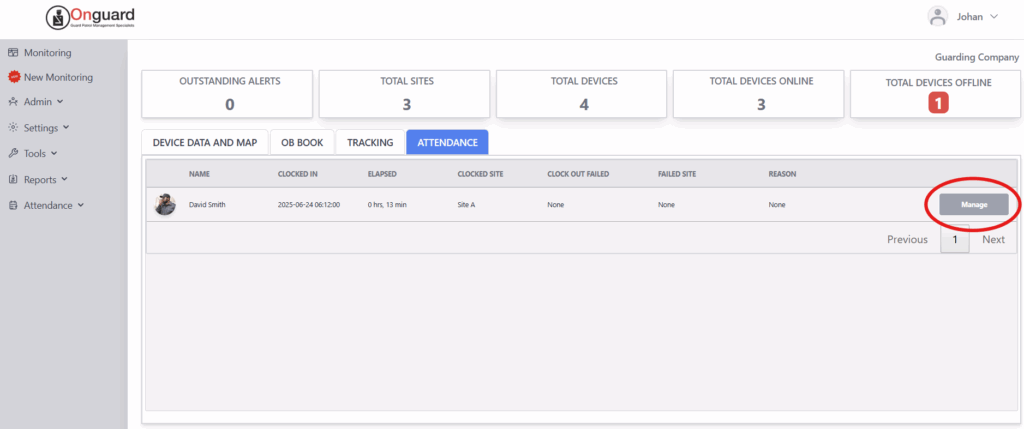
Click the "Manage" button next to the employee you want to clock out.
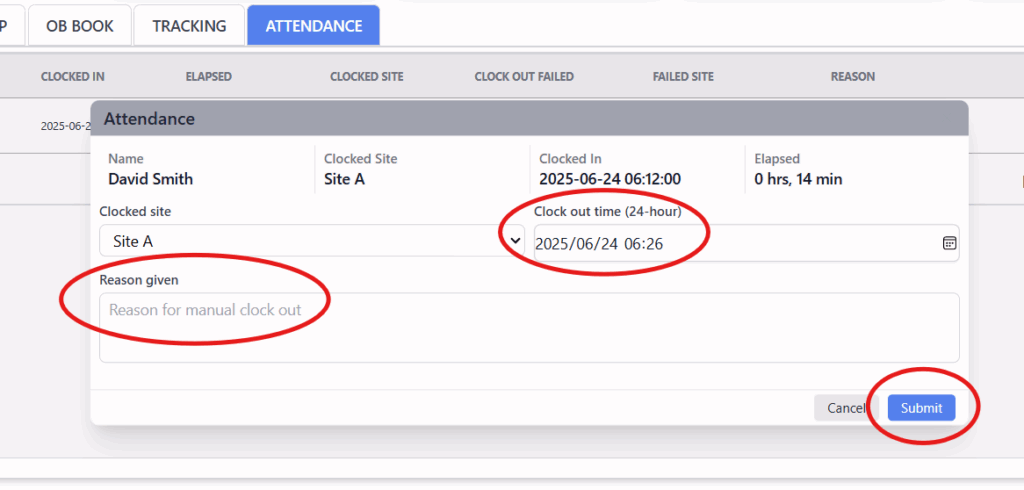
Select a site, clock-out time, and give a reason for the manual entry. Click "Submit" to clock the person out. As always, everything is audited, which means you will be able to see that the person was manually clocked out and by whom.
Step 3: Enter the Clock-Out Details
Select a site and clock-out time, then give a reason for the manual entry. Click "Submit " to clock the person out. The manual clock-out and the responsible controller are recorded in the audit trail.
Keep learning
Continue exploring tutorials in this section.
Load all your personnel on the system to begin clocking in/out and tracking time & attendance according to your financial month.
View GuideUse the mobile app to snap photos and upload to Onguard. Profile pictures of personnel appear on the live attendance page and are used on ID cards.
View GuideClock in and out using your standard-issue NFC attendance tag. Any of your OG-66 devices can be used as a clock-in point.
View Guide