Adding Personnel
Load all your personnel on the system to begin clocking in/out and tracking time & attendance according to your financial month.
View GuideWhen you pull your month-end attendance reports, you may notice some inconsistencies: Excessively long shifts usually indicate an employee forgot to clock out. Missing shifts would indicate the employee forgot to clock in. What do you do?
Our system provides managers with the ability to correct these mistakes. Everything is audited, including the last change that was made, and by who.
Managers can perform all of the following corrections:
Remember to pull your reports again after making corrections!
Step 1: Select the Personnel Member
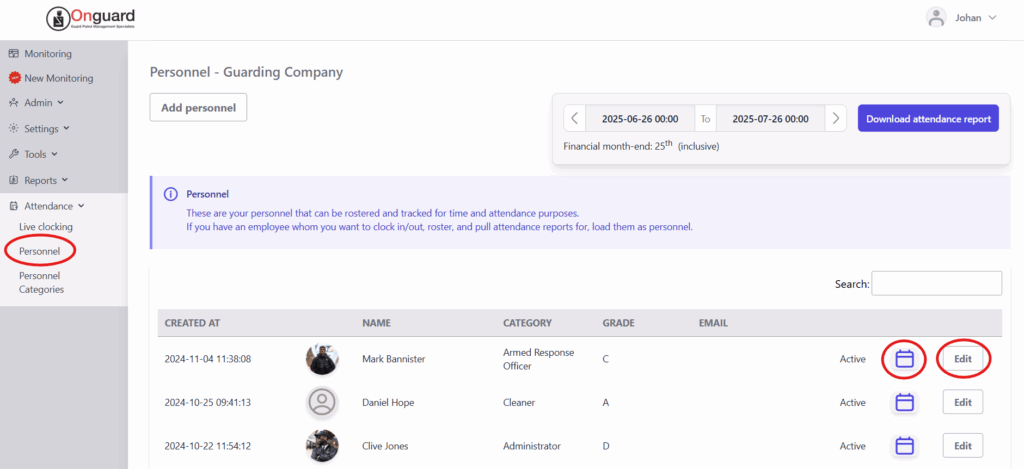
In the main menu on the left, navigate to the "Attendance" tab and click "Personnel". This will open the view of all personnel listed under your company.
Locate the employee you wish to audit and click "Edit". (The quick-view calendar of their attendance is also available here)
Step 2: Open Their Attendance Records
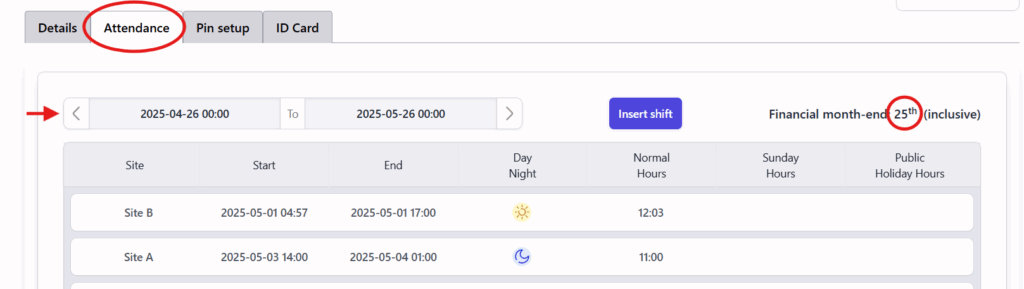
Click on the "Attendance" tab in the employee's profile. This opens a full view of all shifts worked in any financial month. The currently displayed financial month can be changed using the forward and backward arrows. Notice the financial month-end date displayed in the top right corner. If your company uses a different date, kindly contact support and we'll change it for you.
Step 3: Select an Incorrect Shift
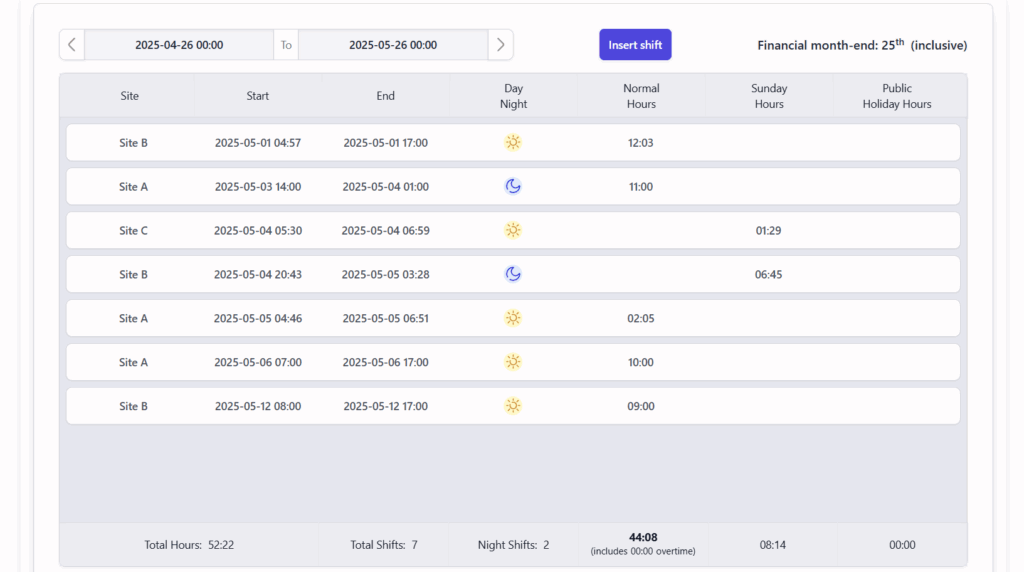
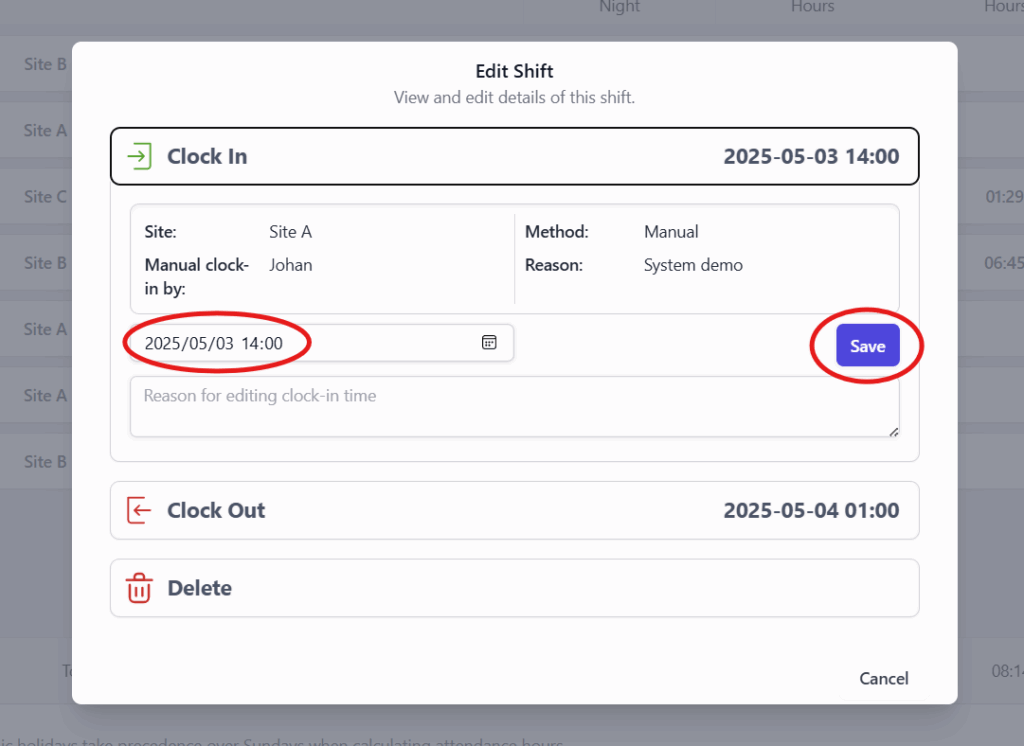
If an employee forgot to clock out, you may see an excessively long shift. To correct this, click on the shift. This will open a popup that shows you all the details of that particular shift. To correct the clock-out time, click "Clock Out", select a new clock-out time, and click "Save".
Step 4: Correct the Clock-Out Time
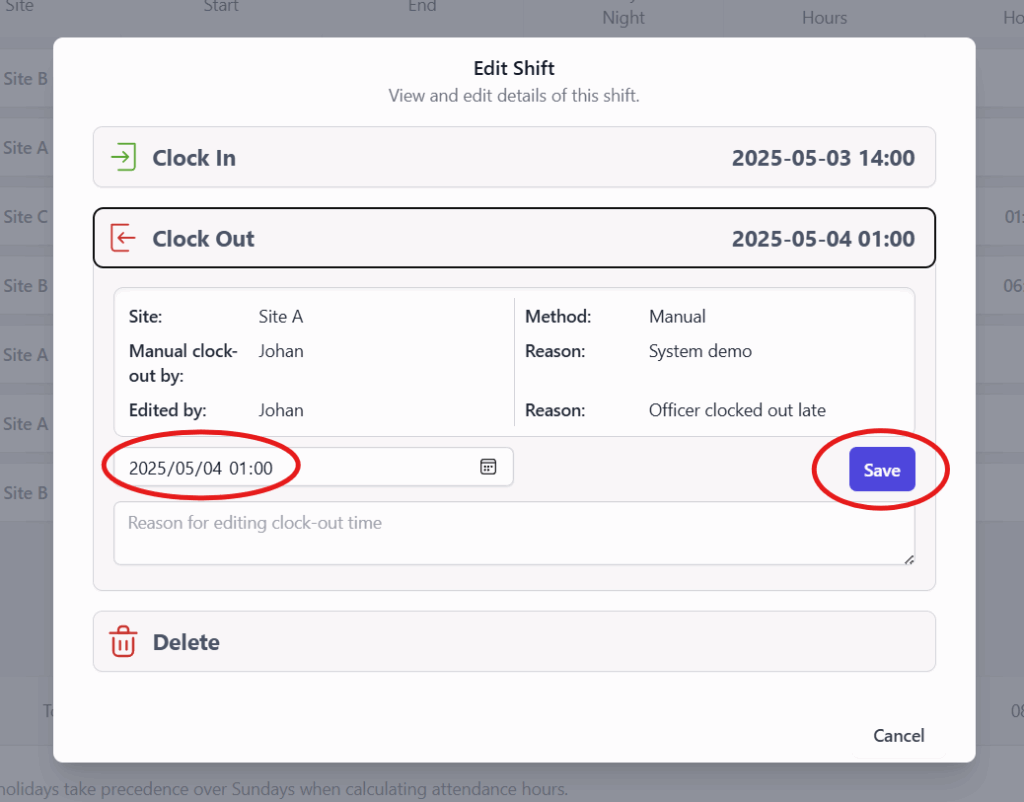
Click "Clock Out ", select the correct clock-out time, and click "Save ".
Step 5: Correct the Clock-In Time
Correcting the clock-in time (if required) works the same way.
Step 6: Start Inserting a Missing Shift
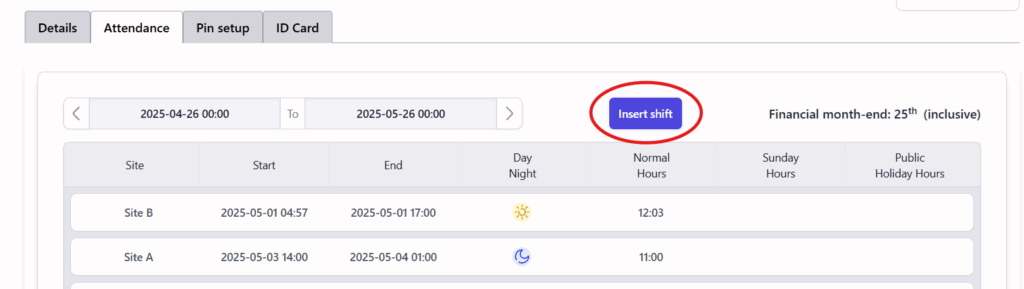
If an employee forgot to clock in at the start of their shift in the first place, the shift will be missing from the attendance records. To insert a missing shift, click "Insert Shift".
Step 7: Enter the Missing Shift Details
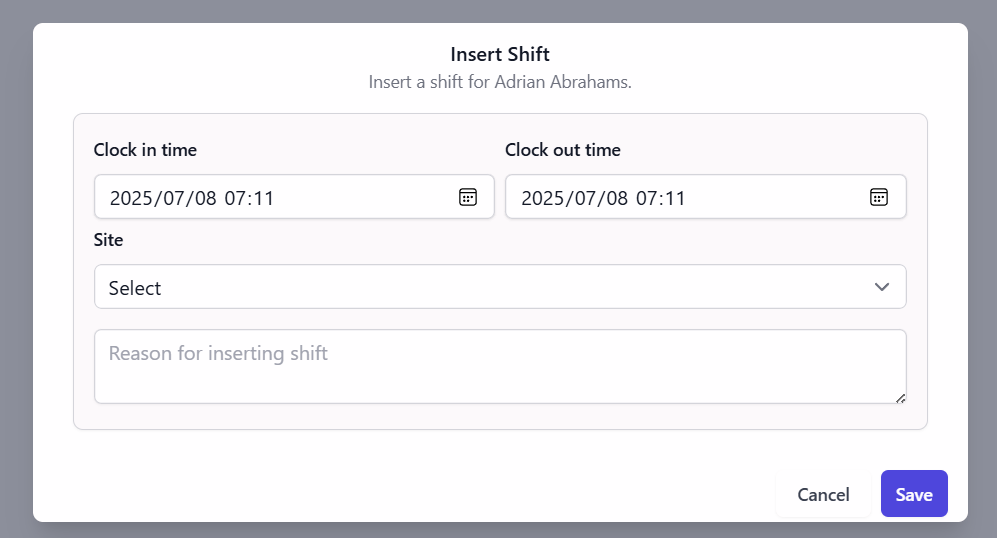
Fill in the clock IN and OUT dates and times and select the site on which the shift was performed. Add a reason for inserting the shift. These details are kept in the audit trail and are visible when you click on the new shift later.
Click "Save" to insert the new shift.
Step 8: Delete an Incorrect Shift
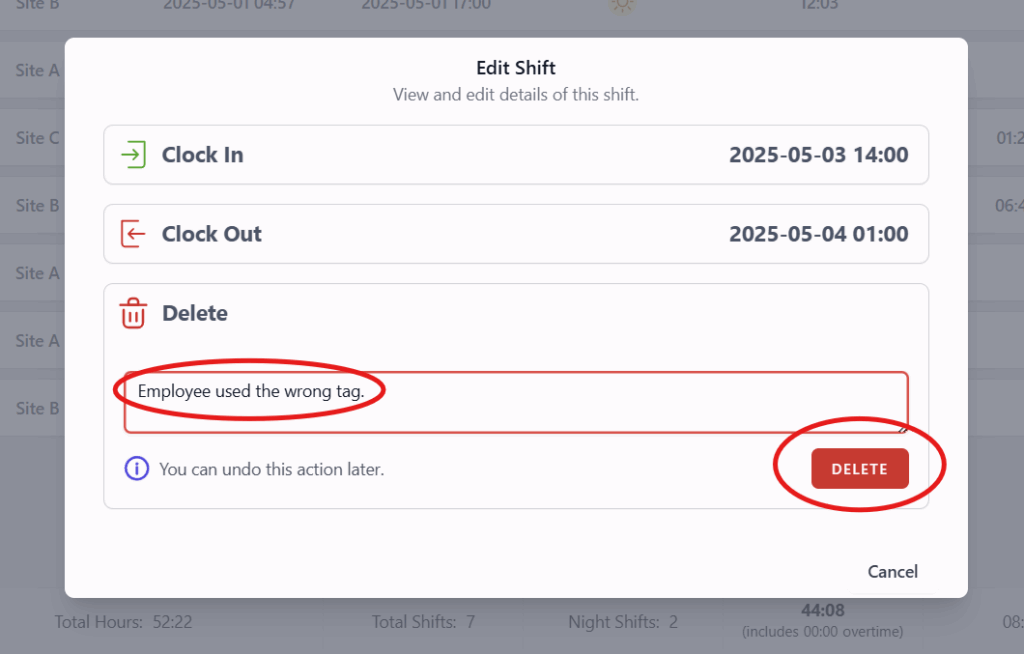
There may be a circumstance in which you might need to delete a shift from an employee's attendance records. This might occur if an employee used another employee's attendance tag to clock in, thus registering the wrong person.
Click on the shift you wish to delete. Add a reason for why the shift is being deleted (for audit purposes) and click "Delete".
Step 9: Review Deleted Shifts
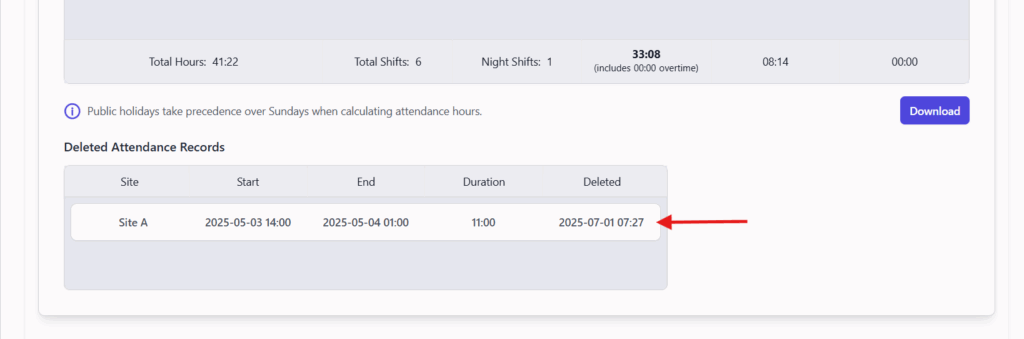
Scroll to the bottom of the page and you will see a list of deleted shifts. The shift you just deleted will appear here. As you can see, all details of the shift are preserved.
Step 10: Restore a Deleted Shift
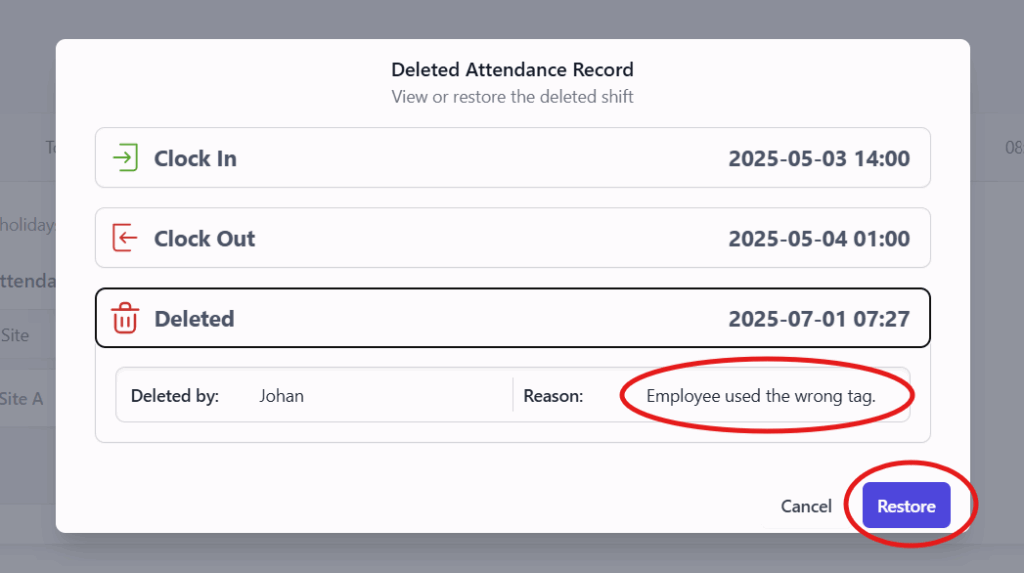
To restore a deleted shift, click on the deleted shift and click "Restore".
Keep learning
Continue exploring tutorials in this section.
Load all your personnel on the system to begin clocking in/out and tracking time & attendance according to your financial month.
View GuideUse the mobile app to snap photos and upload to Onguard. Profile pictures of personnel appear on the live attendance page and are used on ID cards.
View GuideClock in and out using your standard-issue NFC attendance tag. Any of your OG-66 devices can be used as a clock-in point.
View Guide